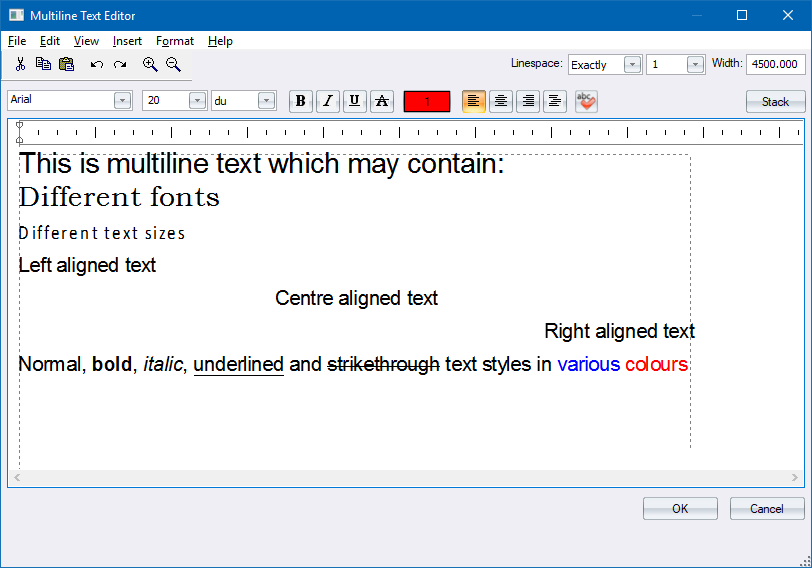
Create or edit multiline text entities.
The Overall Style section applies to the entity as a whole.

The Fragment Style section applies to selected pieces of the text.

|
Option
|
Description |
|
Overall Style Bar |
|
|
Linespace |
Enter the spacing between successive lines of text as a ratio of the height. |
|
Width |
Enter the width of the text in drawing units. |
|
Fragment Style Bar |
|
|
Font |
Select the font for the text fragment from the dropdown list. |
|
Height |
Enter the height, in the selected units, for the text fragment. |
|
Units |
Select the unit of measure for the text height. |
|
Bold button |
Click to make the text fragment bold. |
|
Italic button |
Click to make the text fragment italic. |
|
Underline button |
Click to make the text fragment underlined. |
|
Strikethrough |
Click for text with a strikethrough line. |
|
Colour button |
Click to choose a colour for the selected text fragment. The Colour Selection displays. |
|
Left Align button |
Click to align the selected text fragment on the left of the text frame. |
|
Centre Align button |
Click to align the selected text fragment in the centre of the text frame. |
|
Right Align button |
Click to align the selected text fragment on the right of the text frame. |
|
Justify button |
Click to justify the selected text fragment between the left and right edges of the text frame. |
|
Spellcheck button |
Click to run a spell-check on the text in the MText Editor. |
|
Stack button |
Click to apply stack formatting to the selected text fragment. See the section on Stacking below. |
|
Edit window |
Enter or edit the text in this window. Use the arrow keys, [Home], [End], [PgUp] and [PgDn] to navigate. Use [CTRL+C] and [CTRL+V] to copy and paste, respectively. Use [CTRL+A] to select all the text. Select text fragments by clicking and dragging. Right-click for the context menu. |
|
Import Text button |
Click to import text from an external file. |
|
Angle |
Enter the rotation angle for the text. The text will not be rotated in the editor, to make editing easier. |
Menu Options
|
Option
|
Description |
|
File |
|
|
Import Text |
Select this option to import text from an external file. |
|
Insert |
|
|
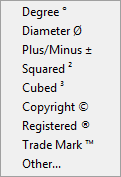
Insert Symbol |
Select this option to insert symbols such as diameter symbols, etc.
The Other... option displays the Character Map. |
|
Format |
|
|
Change Text Style |
Display the Text Style Editor to select another text style or edit the existing text style. |
|
Remove all formatting |
Remove all formatting from the multi-line text entity. |
Stacking
You can “stack” one part of the text on top of another part to represent fractions or tolerances, for example: 3/10
In the MText Editor, you create stacked text by placing one of 3 special characters ( /, # or ^ ) between the text you want on the top of your stack, and the text you want on the bottom of the stack. Then you select the part of your text you want to stack, and then click the “Stack” button:
top/bottom will become top/bottom stacked text with horizontal line)
top#bottom will become top⁄bottom stacked text with diagonal line)
top^bottom will become top¦bottom as tolerance text