Radial
Add radius dimensions to the drawing.
Icon |
Command |
Shortcut Key |
Toolbar |
|
DIMRADIAL |
|
Dimensions |

This function allows you to add a radius dimension by indicating the arc or circle to be dimensioned and the position for the dimension text.
 Dimensions use
the current line style.
Dimensions use
the current line style.
Procedure
- You are prompted to:

- The dimension style can be selected from the dropdown list. Alternatively,
click
 to change the dimension
style. You can also click Pick to copy dimension
settings from an existing dimension entity.
to change the dimension
style. You can also click Pick to copy dimension
settings from an existing dimension entity.

Select the Text override checkbox if you want to be able to edit the dimension text.
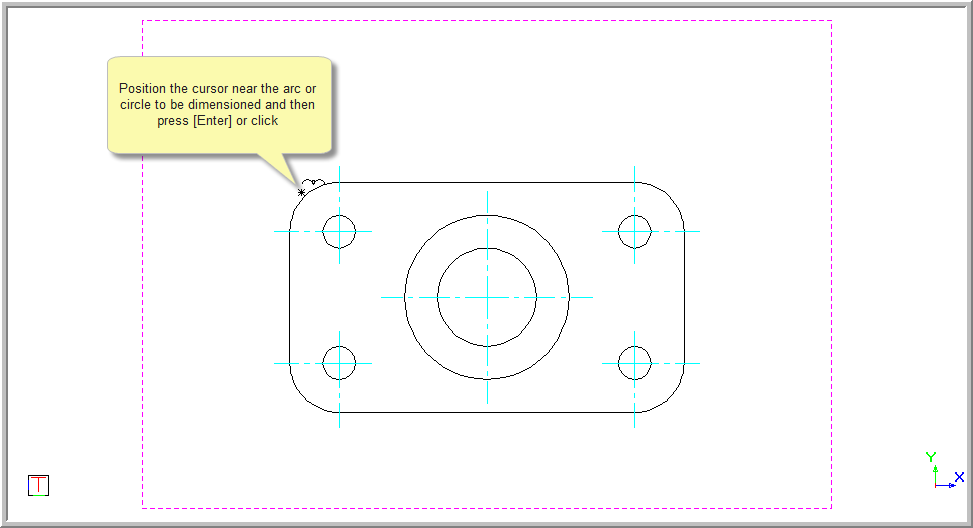
- The Point snap mode will be active. Position the cursor near the arc or circle to dimension and press [Enter] or click.
You are prompted to:
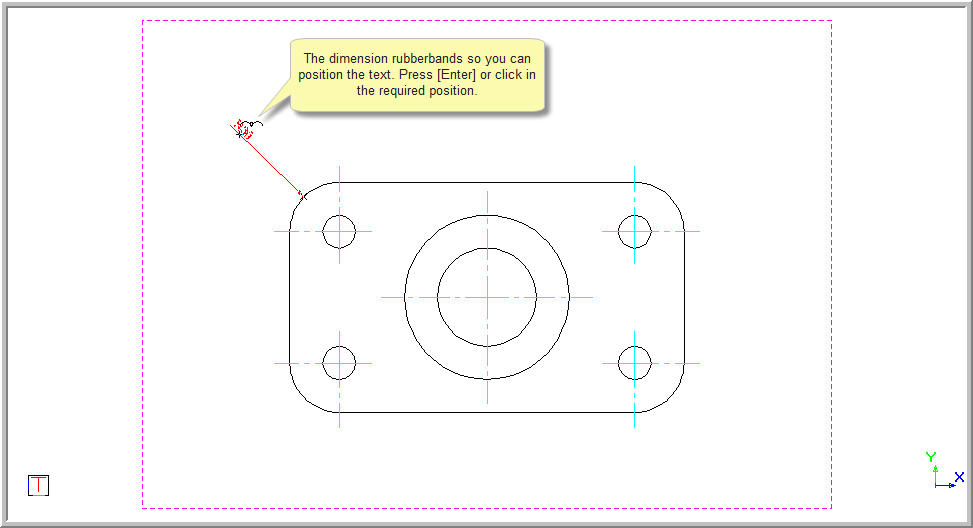
A rubberbanded preview of the dimension is drawn and you can move the mouse to indicate the dimension offset. Press [Enter] or click in the drawing to indicate the final position of the text. The text can be placed "externally" or "internally", depending on the position you indicate.
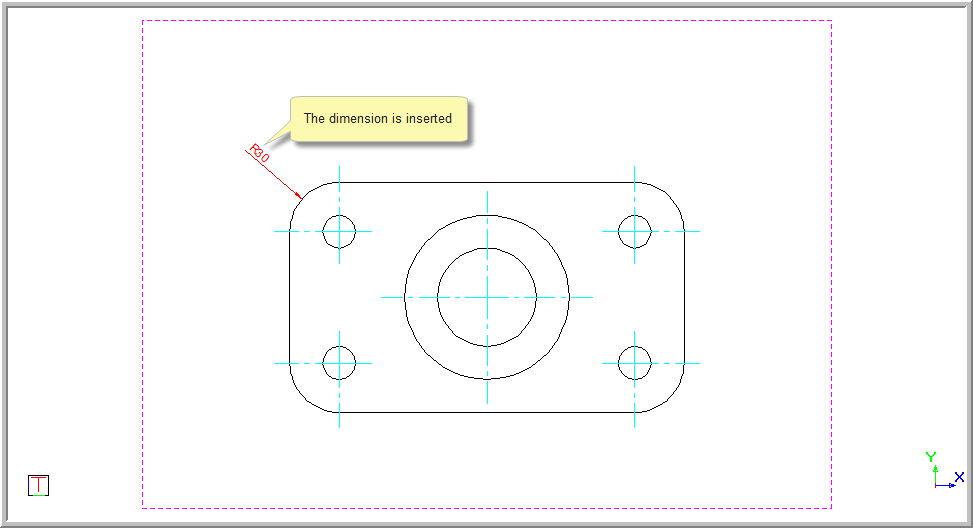
If you have selected the Text override option, you are now able to type over the text. Press [Enter] or click Enter to insert the dimension.
If the Text override is not selected the original measurement will be inserted.
You can continue to add dimensions as the function repeats.
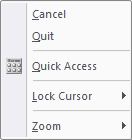
- Right-click and select Quit to end the function. Alternatively, press [Esc]
Select the Angle snap checkbox in the Prompt Bar. When you indicate the position of the radial dimension, the angle of the dimension line will be snapped to 15 degree increments. This allows you to easily draw radial dimensions at 30, 45 or 60 degrees from the horizontal, for example.
Converting Dimensions
Radial dimensions and jogged radial dimensions are two separate entity types. However, it is possible to convert from one to the other.
To convert radial dimensions to jogged radial dimensions:
Select the radial dimension entity, right-click and select Convert to Jogged Radial Dimension from the popup context menu.
The radial dimension entity is converted to a jogged radial dimension entity.
To convert jogged radial dimensions to radial dimensions:
Select the jogged radial dimension entity, right-click and select Convert to Radial Dimension from the popup context menu.
The jogged radial dimension entity is converted to a radial dimension entity.