Aerial Image
Load a batch of geo-referenced images.
|
Icon |
Command |
Shortcut Key |
Toolbar |
|
|
INSERTAERIALIMAGE |
|
Insert |
This function allows you to add an aerial image downloaded from the internet to your drawing. A number of image providers are available, the default being Microsoft Azure Maps.
This function is restricted to the Drawing tab and will only function the Coordinate system is set to Surveyor mode, as the image is automatically geo-referenced.
 The captured image is not of very high quality, and the accuracy in a survey environment is questionable.
The image should be used for planning purposes only, and Knowledge Base Software (Pty) Ltd therefore accepts no responsibility for the accuracy of designs calculated according to this imagery.
Utilising this function signifies your acceptance of these conditions
Procedure
To insert an aerial image into your drawing:
- Select Insert ► Aerial Image.
- The Aerial Image Providers dialog is displayed:
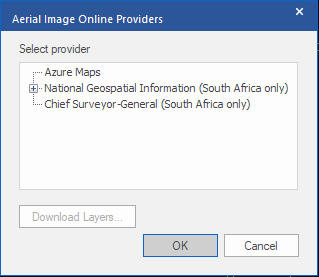
Choose the desired provider and press OK to continue
- A prompt is displayed.

Reposition the drawing to ensure the area that you require the aerial image to cover is maximised in the display. Press Enter to continue.
-
If the drawing is a Civil Designer project drawing (or been set up as such at any point), the relevant survey information is taken from the drawing dictionary.
If this is a CAD only drawing, the Projection dialog is displayed so you can make the relevant settings.
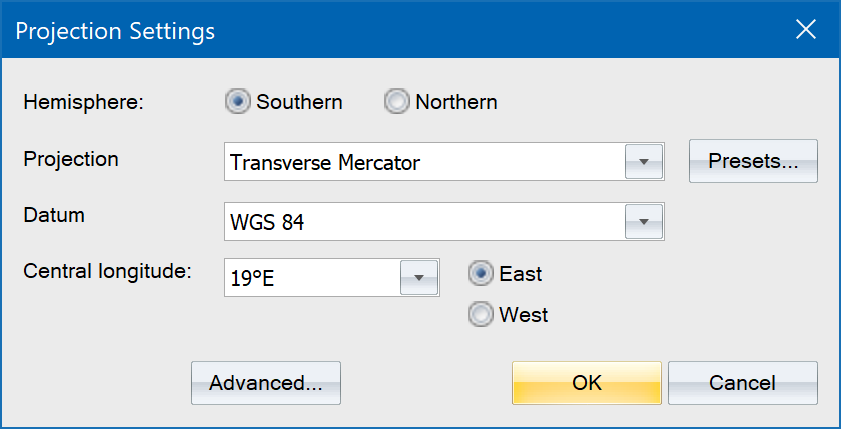
Make the relevant projection settings, then click OK to continue (See Projection Settings and Advanced Projection Settings ).
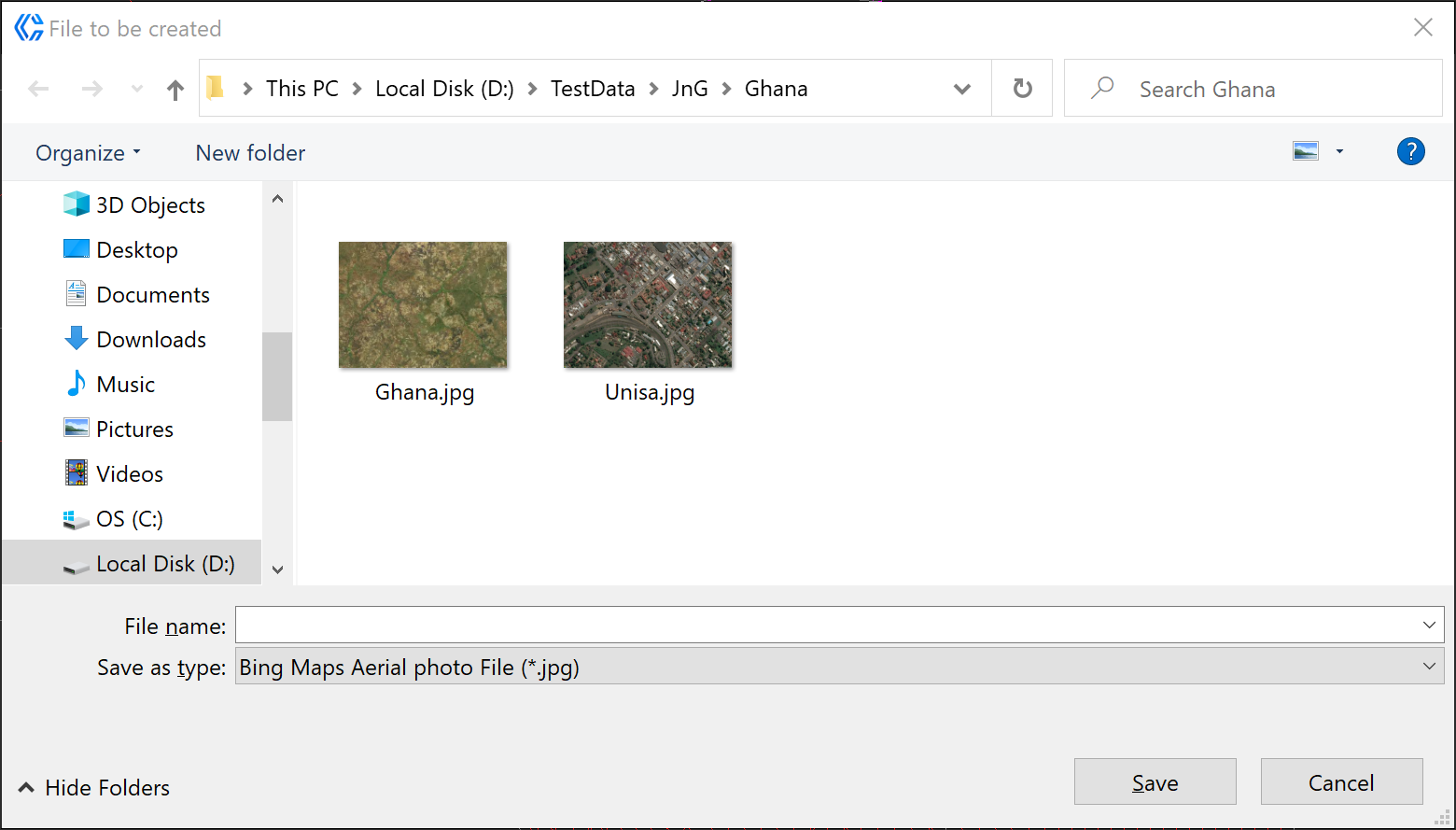
- The file browser displays so you can select the image file to insert.
-
Enter a name to be used for the downloaded image file click Save.
-
The image is inserted into the active layer in the correct position. Once images have been inserted, they can be managed with the Image Manager..
-
If the drawing is zoomed in too much, then there might not be data available at that zoom level. In that case the image will look like this:

-
If that occurs, demagnify once or twice and retry the operation until an aerial image is obtained.