OLE Object
Insert OLE objects, such as Word documents, Excel spreadsheets and audio clips, into your drawing.
|
Icon |
Command |
Shortcut Key |
Toolbar |
|
|
INSERTOLEOBJECT |
|
Insert |

This function allows you to insert an OLE object into your drawing at a specified position. Note the following limitations associated with OLE objects:
-
Only the first page of the OLE object's document is displayed in the drawing.
-
The origin application of the OLE object handles the presentation/drawing of the OLE object. This may result in parts of the OLE object not being visible, or not scaled to the zoom.
-
You cannot rotate an OLE object.
-
You can only insert a PDF file as an OLE object if the PDF paper size is A2 or smaller.
-
It is not possible to use a PDF as a background image for a drawing.
Procedure
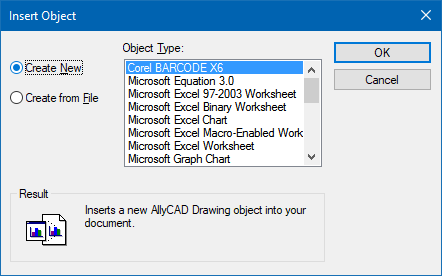
- The Insert Object window displays, prompting you to choose an object type or to browse for a document file to insert.
-
Specify if you want to create a new OLE object, or create one from file.
Create a New Object
-
Select the Create New radio button.
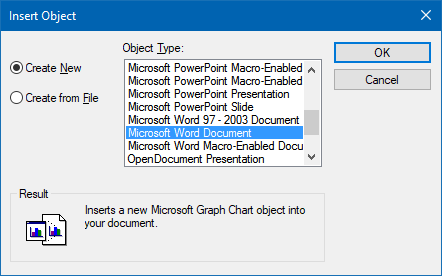
- Select the object type from the Object Type list.
-
Click OK button.
- You are prompted to:

-
Use the Control Bar to adjust the scale.
-
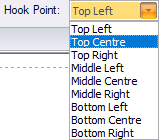
The hook point of the OLE object can be set in the Hook Point (insertion point) dropdown list.
-
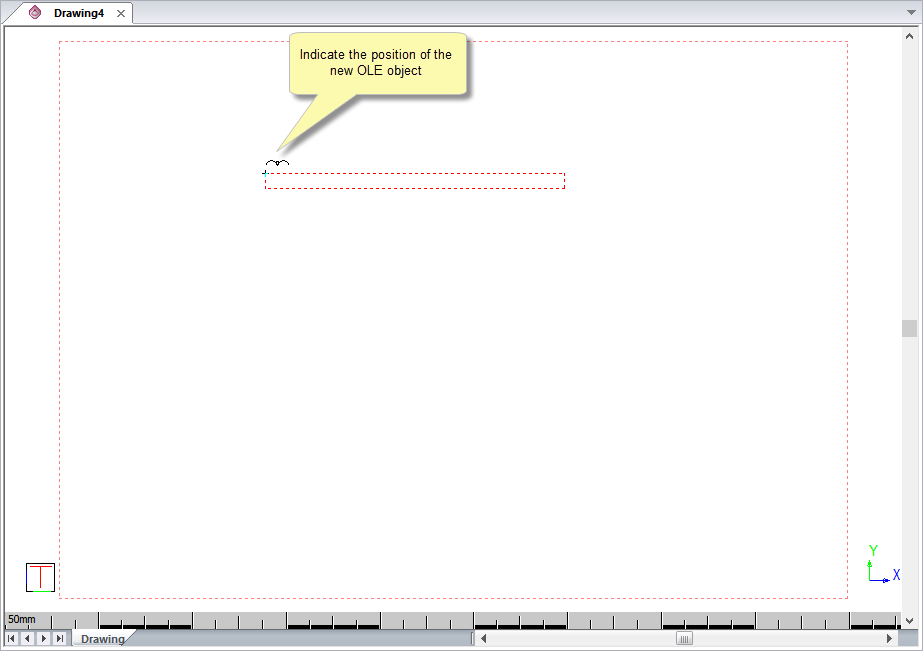
Click in the drawing to place the OLE object.
-
The OLE object is opened using the application associated with it's type. In this example, Microsoft Word is used allowing you to edit the OLE object.
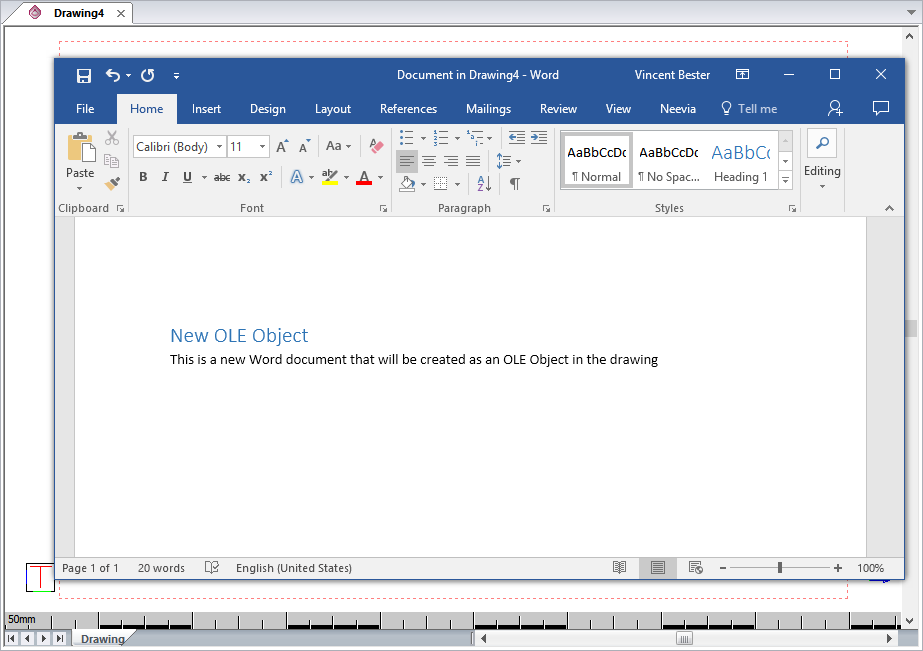
-
Close the document to return to the drawing.
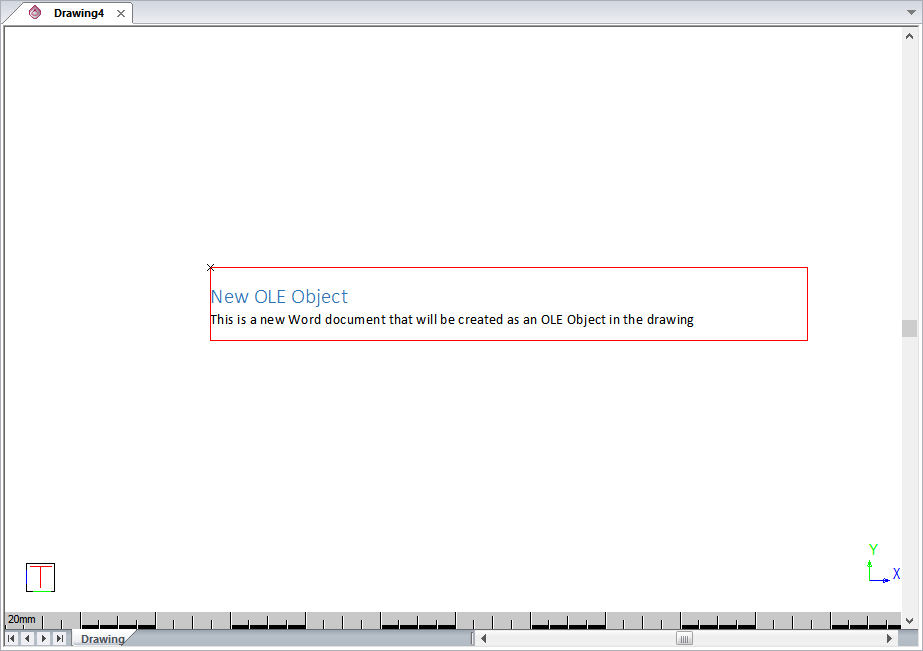
Insert an OLE Object Using an Existing File:
-
Select the Create from File radio button.
-
If the Link checkbox is not selected, you will be able to insert the files as objects as displayed in the Result box shown below.
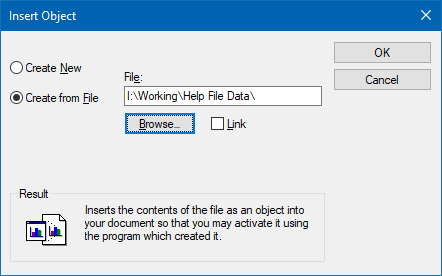
If you select the Link checkbox, you will be able to insert a link to the picture of the file contents into your drawing.
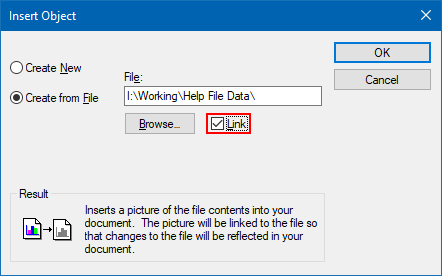
-
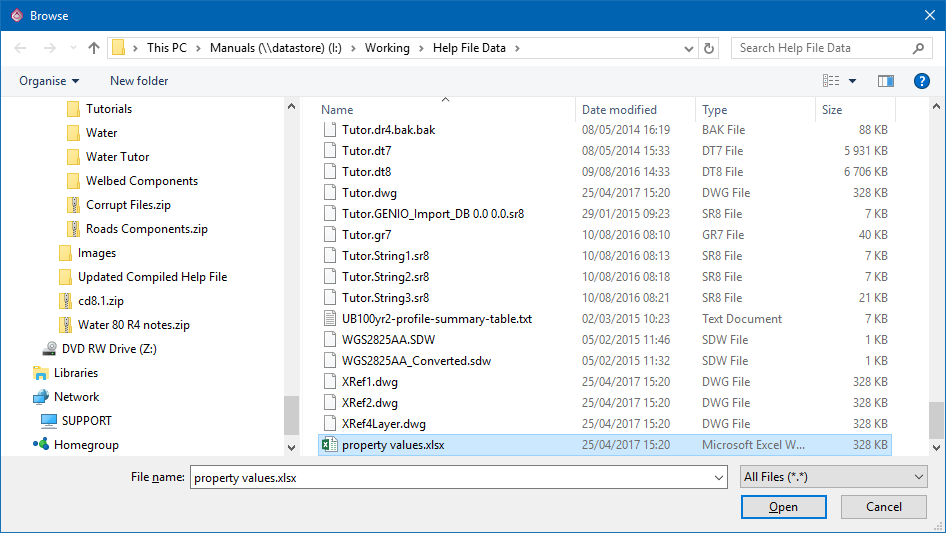
Click Browse... to locate an existing file. The Browse window opens.
-
Select the file and click Open.
-
The Insert Object window displays again. Click OK to insert the indicated file.
-
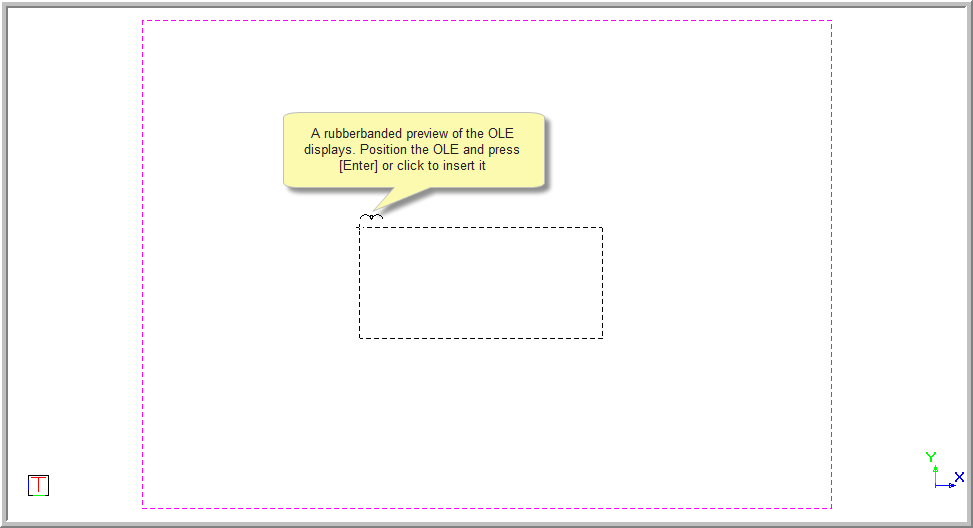
You are prompted to:

A rubberbanded preview of the OLE displays to assist with placement.
-
You can use the CAD Bar to adjust the scaling and hook point of the OLE object.
-
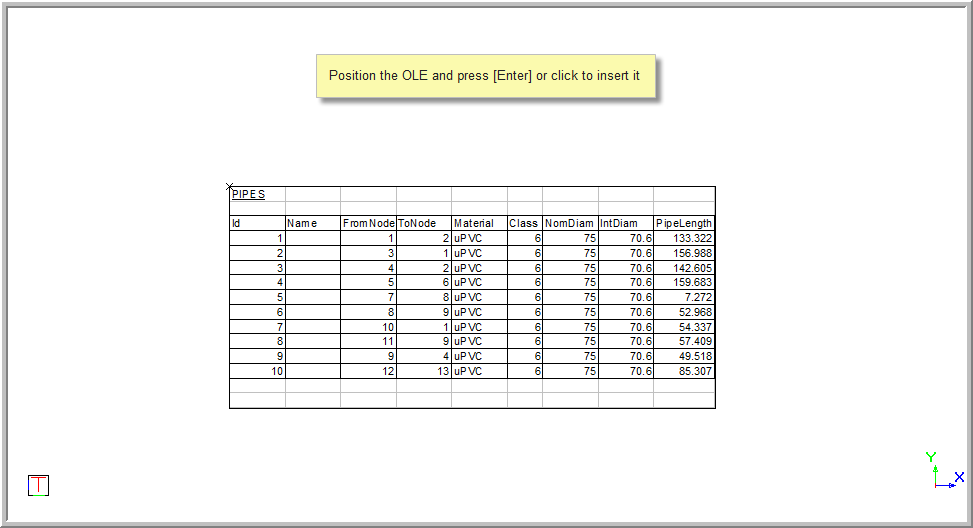
Click in the drawing to place the OLE object. The OLE object appears in your drawing.
Edit an OLE Object
To edit the OLE object:
-
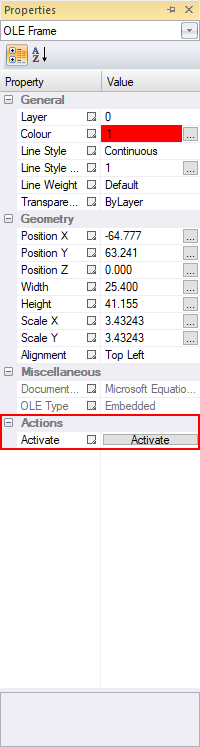
Select the object and select View ► Properties. Alternatively, double-click the entity.
-
The Properties Bar displays.
-
To open the OLE object, double-click the Activate option. The OLE application opens, allowing you to edit it.