Purge
Remove unused objects from the drawing.
|
Icon |
Command |
Shortcut Key |
Toolbar |
|
|
PURGE |
|
Tools |

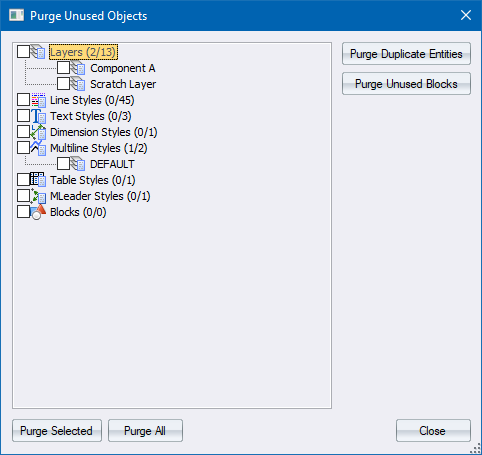
The Purge Unused Objects window lists all the objects in the drawing that are unused.
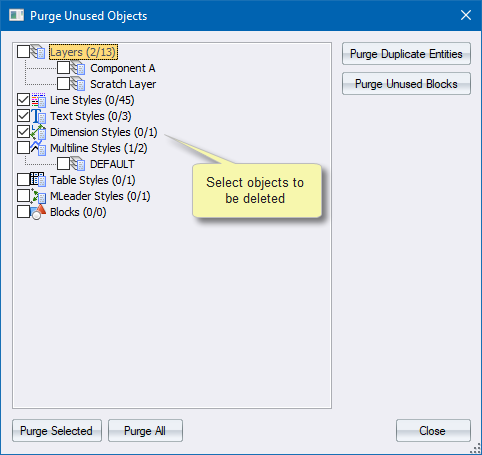
Select the objects you want to remove from the drawing.
After a purge operation, new objects may appear in the unused objects list. These are objects that have become not referenced after the last purge operation.
 This action cannot be undone.
Procedure
- The Purge Unused Objects list displays and lists all the objects in the drawing that are not referenced by any entities or other objects in the drawing.
-
To purge only selected objects, you can select the objects from the objects list by clicking them. Alternatively, use press and hold [Shift] while you select a range of objects, or press and hold [Ctrl] while you select individual objects.
-
Specify the action you want to take:
-
-
Click Purge Selected to remove the selected objects from the drawing.
-
Click Purge All to remove all unused objects from the drawing.
-
Click Purge Duplicate Entries to remove all duplicate entries from the drawing.
-
Click Purge Unused Blocks to remove all unused blocks from the drawing.
-
Fix Drawing
This function allows you to clean up the drawing by removing invalid geometry elements and fixing errors in styles and style references. Errors that can be detected and fixed are:
-
-
Zero-length lines and polylines
-
Zero-radius arcs and circles
-
Empty text entities
-
Hatches with no boundaries
-
Entities with invalid coordinates
-
Bad layer/block/style references e.g. a text entity that references a text style that does not exist in the drawing
- Bad layer/block/style names
-
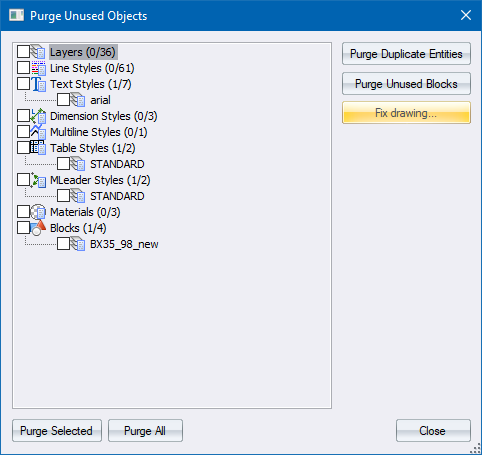
- In the Purge dialog, click Fix drawing....
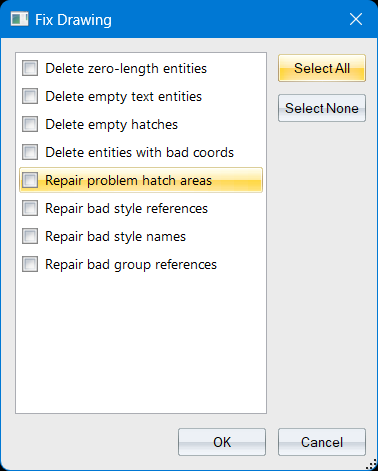
- You are prompted to select which errors you want to detect/fix.
|
Option
|
Description |
|
Delete zero-length entities |
Remove any entities which have zero length or area. In most cases these entities will not display, or not display correctly. Point entities will not be removed. |
|
Delete empty text entities |
Remove any text entity that has no displayable text (character count = 0). Will not remove Attribute entities. |
|
Delete empty hatches |
Remove invalid hatch entities that have no boundaries. |
|
Delete entities with bad coords |
Remove any entity in the drawing which has invalid coordinates (x, y or z ordinate has “infinity” (99^99) or “NaN” (“not a number”)). |
|
Repair problem hatch areas |
Repair the boundary (including “island” boundaries) of any hatch entity that cannot be properly hatched/filled |
|
Repair bad style references |
Corrects bad references from entities and other objects to Layers, Text Styles, Dimension Styles, Table Styles, MLeader Styles, Materials and Blocks. |
|
Repair bad style names |
Makes sure all styles (Layers, Text Styles etc as above) have valid names. Removes invalid characters from the style names, sets empty style names to “NO_NAME”, and make sure style names are unique. Note: Invalid style names may cause DWG export to fail. |
|
Repair bad group references |
Removes empty groups. Fixes various group to entity reference linking errors. Use this option if you have problems selecting groups correctly. |
-
Click Select All to enable all options, or select options individually bu selecting the appropriate checkboxes.
-
Click OK to run the Fix drawings function. If you have a very large drawing the function may take a few seconds to run.
-
A message will inform you of how many entities were removed from the drawing.
- More detailed results will be sent to the Output Bar.