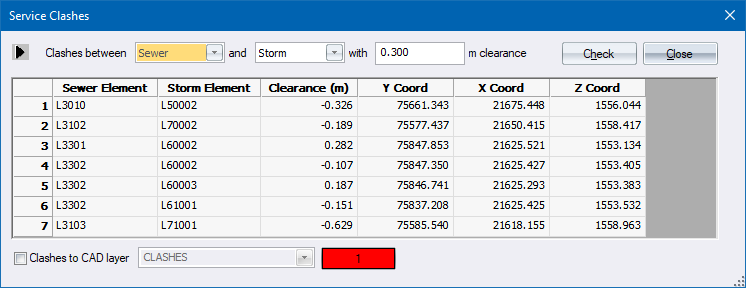
Select the services to check for clashes and the clearance required between services.
|
Option
|
Description |
|
Clashes between |
Select which two services to test for clashes in the lists. |
|
Clearance |
Specify the clearance required between the services. |
|
Check |
Click to start the analysis. |
|
Close |
Click to close the window. |
|
Table |
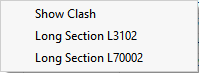
As a clash is found, the following details are displayed on the table - Element from first service, Element from second service, Clearance between the two services, and the Y and X coordinate of the clash. To view the clash, right-click on the row of interest and a menu with two options opens.
The Show Clash option positions the clash on the centre of the screen. The Long Section option opens the Longitudinal Section Editor and displays a long section of the chosen branch, as well as a symbol indicating the crossing service. |
|
Clashes to CAD layer |
Select this checkbox to have the plan positions of the clashes drawn onto a CAD layer with the name, as entered in the text box. This makes it easy to identify the clash zones at a later stage. |
|
Pen |
Select the pen colour in which the clash position indicator must be drawn. |