|
Option
|
Description |
|
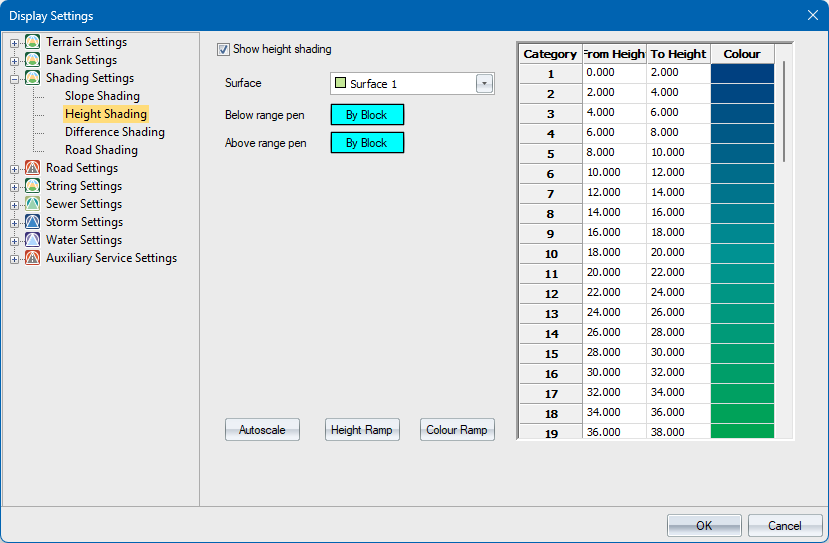
Show height shading |
Select this checkbox to enable height shading display. |
|
Surface |
Select the surface for which height shading should be generated. |
|
Below range pen Button |
Click this button to access the colour settings so you can specify a pen for shading items which fall below the minimum specified height. |
|
Above range pen Button |
Click this button to access the colour settings so you can specify a pen for shading items which are above the maximum specified height. |
|
Category list |
|
|
From Height column |
Enter the minimum height for this range. |
|
To Height column |
Enter the maximum height for this range. |
|
Colour column |
Right-click the cell to access the Windows colour settings so you can specify a colour with which to shade the range. |
|
Autoscale button |
Click to automatically generate height ranges based on the minimum and maximum heights of the DTM points. |
|
Height Ramp button |
Click to access the Height Ramp in order to specify a ramp to be applied to all ranges. |
|
Colour Ramp button |
Click to access the Colour Ramp in order to specify a ramp to be applied to all ranges. |