|
Option
|
Description |
|
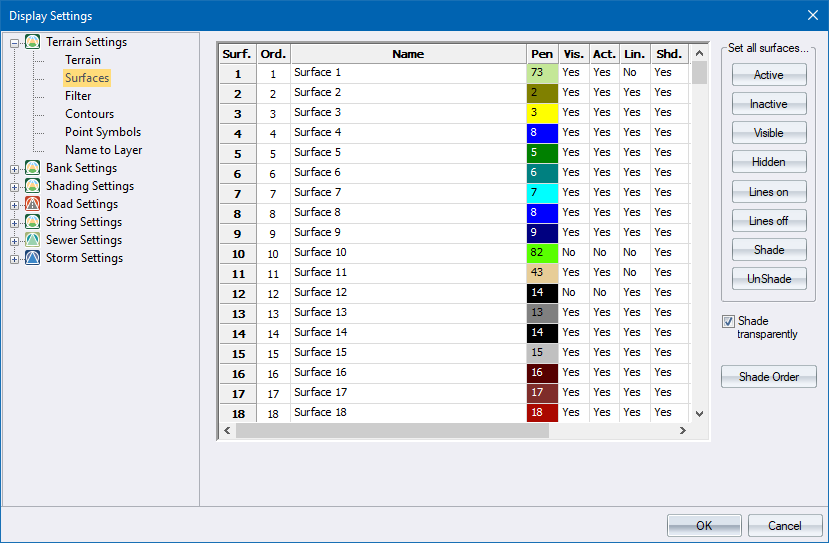
Columns |
|
|
Surf |
Displays the actual surface numbers. |
|
Ord. |
Displays the surface shade ordering, from first to be drawn shaded to last. |
|
Name |
Enter the name to be used for this surface. |
|
Pen |
Select the pen in which points, including names and heights, on this surface should be displayed. Right-click the relevant cell to access the standard pen selection options. |
|
Vis. |
Toggles the visibility of this surface. Right-click the relevant cell to toggle between Yes and No. DTM points that are not visible cannot be selected in those functions which act on individual points. |
|
Act. |
Toggles the active status of this surface. Right-click the relevant cell to toggle between Yes and No. DTM Points on inactive surfaces will not be used by any functions that alter groups of points. |
|
Lin. |
Toggles the line display status of this surface. Right-click the cell to toggle between Yes and No. |
|
Shd. |
Toggles the surface shading on/off. |
|
Set all surfaces... |
|
|
Active button |
Click to set the Active status for all surfaces to Yes. This has the intended side effect of also setting the Visible status to Yes. |
|
Inactive button |
Click to set the Active status for all surfaces to No. |
|
Visible button |
Click to set the Visible status for all surfaces to Yes. |
|
Hidden button |
Click to set the Visible status for all surfaces to No. This has the intended side effect of also setting the Active status to No. |
|
Lines on button |
Click to set the Lines Display status to Yes. |
|
Lines off button |
Click to set the Lines Display status to No. |
|
Shade |
Click to set the Shade status for all surfaces to Yes. |
|
UnShade |
Click to set the Shade status for all surfaces to No. |
|
Shade transparently |
Select this checkbox to shade the surfaces using a transparent fill rather than a solid fill. |
| Shade Order | Press to specify the order in which surfaces will get drawn shaded. By default they are drawn shaded in the order of the surface number. Choosing a different order is useful to control when one surface is meant to appear "beneath" another. |
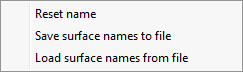
If you right-click on the surface list the following popup menu displays:
|
Option
|
Description |
|
Reset name |
Reset the surface name to "Surface x", where x is the surface number. |
|
Save surface names to file |
Save the current surface names to a file. |
|
Load surface names from file |
Load an existing surface name file and updated all the current surface names. |