Road Long Section Setup

Long sections can be plotted from road data or from data in an ASCII file. Depending on where the data is extracted from, one of two options will be displayed.

From Road File
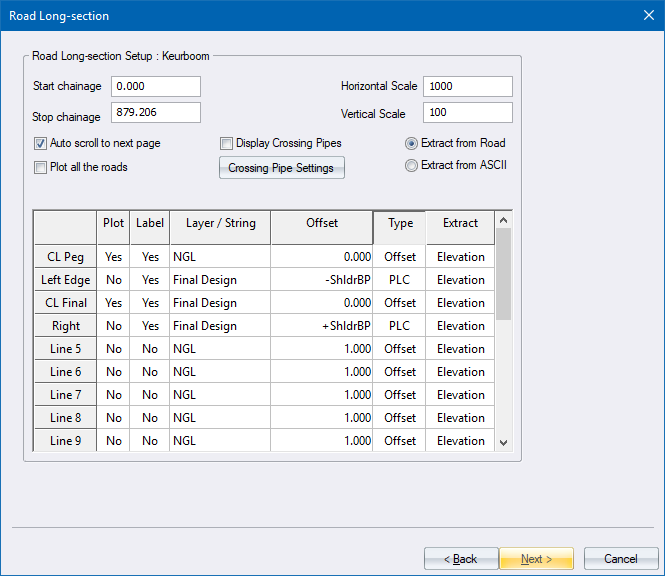
Option


Description

Start chainage

Enter the chainage from which long section extraction should take place.

Stop chainage

Enter the chainage at which long section extraction should terminate.

Horizontal scale

Enter the horizontal scale of the generated long section.

Vertical scale

Enter the vertical scale of the generated long section.

Auto scroll to next page

Select this checkbox to have multiple drawings generated if the long section cannot fit on a single page.

Plot all the roads

Select this checkbox to draw long sections for all the roads. The program will attempt to fit as many long sections onto each page. Plotting will start at Road 1, and stop when it encounters the first empty road.

Display Crossing Pipes

Select this checkbox to display the Crossing Pipes dialog and draw crossing Sewer, Storm or Stardust pipes on the road long section.

Crossing Pipe Settings

Click to display the Crossing Services and to specify which crossing services to display on the long section.

Extract from Road

Extract the data for the long section from a road design file.

Extract from ASCII file

Extract the data for the long section from a ASCII file.

Data Table

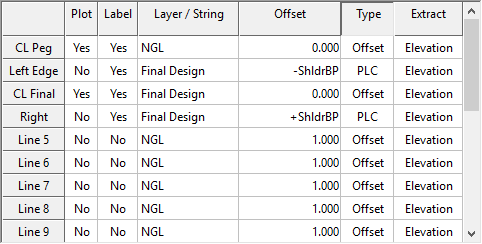
Up to 20 data items can be specified, where each data item represents either one of the long section lines, one of the long section labels, or both.

Column


Description

Plot

Select whether this data item should be plotted. Right-click to toggle between Yes and No.

Label

Select whether this data item should be labelled. Right-click to toggle between Yes and No.

Layer

Select the road layer from which this data item should be extracted. Right-click to display a list of road layers.

Offset

Specify the offset at which data for this data item should be extracted. Use a negative offset to specify data left of the centre line, or a positive offset to specify data to the right.

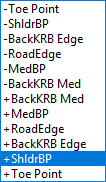
If you specify a point location code, you can select the point from the list.


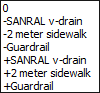
If you specify a component, select the desired Components from the dropdown list. All referenced components in the active road will be listed twice - once with a “-“ prefix and once with a “+” prefix. Use the entries with the “-” prefix to specify components which might exist on the left-hand side of the road and the entries with the “+” prefix to specify components that might exist on the right-hand side of the road.

Type

From the dropdown list, select from which source the data should be extracted. After selecting the data source type, you can specify where the data should be extracted by using the “Offset” and “Layer/String” cell.


  • Offset    Extract data at a specified cross-section offset. Select the cross-section layer from the “Layer/String” and enter the offset in the “Offset” cell.
  • PLC    Extract data from a specified cross-section Point Location Code. Select the cross-section layer from the “Layer/String” and enter the Point Location Code in the “Offset” cell.
  • String    Extract data from a specified Road Strings. Select the string name from the “Layer/String” column. Select the appropriate option from the drop down list in the “Offset” column. 
    1)    Closest: The closest intersection of the addon string with the cross section line will be plotted.
    2)    Leftmost: The leftmost intersection of the addon string with the cross section line will be plotted.
    3)    Rightmost: The rightmost intersection of the addon string with the cross section line will be plotted.
  • Component    Extract data from a specified component(3) that might exist in a cross-section or string. Select the component name from the dropdown list in the “Offset” cell. This is mostly used when the “Extract” cell is set to “Line”..

Extract

From the dropdown list, select the type of data to be extracted and plotted on the long section. 

  • Chainage: The chainage value will be extracted.

  • Elevation: The elevation will be extracted from the selected cross-section layer or selected string.

  • Offset: The offset from the centre line will be extracted. If the “Type” option is set to “String”, then the offset from the selected string to its parent string will be extracted.

  • Crossfall: The crossfall percentage from the centre line will be extracted. If the “Type” option is set to “String”, then the crossfall from the selected string to its parent string will be extracted.

  • DTM Elevation    The elevation will be interpolated on the DTM, instead of being extracted from the cross-section or String vertex. When you select this option, you will be asked from which Surface to extract the elevation. 

  • Line: Instead of extracting a value from a string or cross-section, this option will simply extract a Boolean value, ie if a specific condition is met or not. Then, the plotting routing will draw a line in the data row of the long section, where the condition is met, or leave a gap where the condition is not met. This is useful for indicating the presence of drains or guardrails on a long section.
    For example: 

    1) To draw a line where there are median islands, select Type = “String” and specify the “Layer / String” to be “L_MEDIAN_Krb0”.

    2) To draw a line where a component exists on the design layer, select Type = “Component” and specify the component in the “Offset” column.


Back

Click to return to the previous page.

Next

Click to accept the current entries and go to the next page.

Cancel

Click to cancel the function.

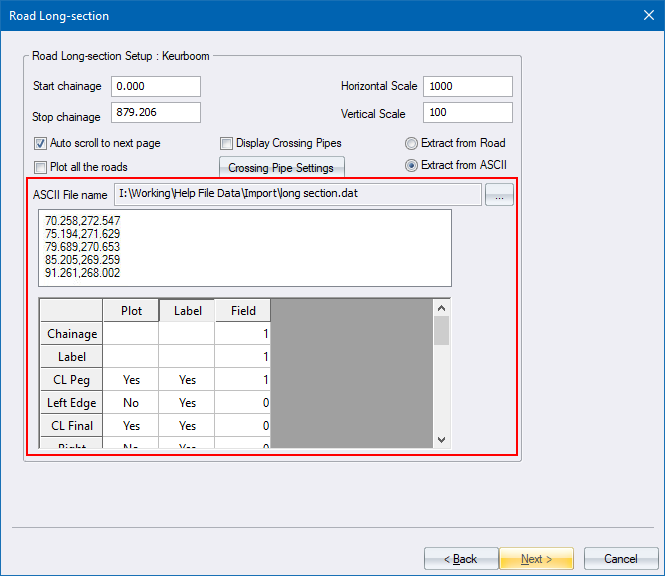
From ASCII File

Up to 20 data items can be specified, where each data item represents either one of the long section lines, one of the long section labels, or both.

Option


Description

ASCII file name

Displays the name of the selected file.

Browse Button (...)

Click to select the name of the ASCII file, which must be comma-delimited, from which the long section should be extracted.

Display list

Displays the contents of the selected file.

Chainage

Specify the field that contains the chainage of the long section data item.

Label

Specify the field that contains the chainage label of the long section data item. This can be the same as that specified for the chainage.

Plot

Select whether this data item should be plotted. Right-click to toggle between Yes and No.

Label

Select whether this data item should be labelled. Right-click to toggle between Yes and No.

Field

Specify the field that contains the data that should be plotted and/or labelled.