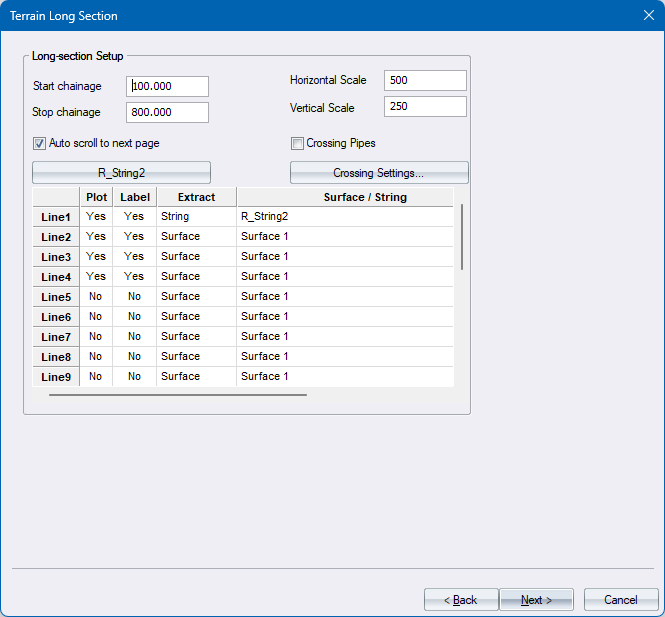
Terrain Long Section Dialog
|
Option
|
Description |
| Long-section Setup | |
|
Start Chainage |
Enter the chainage from which long section extraction should take place. |
|
Stop Chainage |
Enter the chainage at which long section extraction should terminate. |
|
Auto scroll to next page |
Select this checkbox to have multiple drawings generated if the long section cannot fit on a single page. |
|
Alignment from string |
Check in order to display crossing services, e.g. Sewer, Storm, etc. on the long section. |
|
Crossing Pipes |
Check in order to display crossing services, e.g. Sewer, Storm, etc. on the long section. |
|
Crossing Settings |
Press to display the Crossing Services Dialog to select which crossing services to display |
|
Horizontal Scale |
Enter the horizontal scale of the generated long section. |
|
Vertical Scale |
Enter the vertical scale of the generated long section. |
| Data Table | |
|
Plot |
Specify whether this data item should be plotted. Right-click to toggle between Yes and No. |
|
Label |
Specify whether this data item should be labelled. Right-click to toggle between Yes and No. |
|
Extract |
Specify whether to show data from a terrain surface or from a terrain string. |
|
Surface/String |
Depending on the choice of the Extract column, select either the terrain surface or the terrain string to extract data. |
| Back button | Click to return to the previous page. |
| Next button | Click to accept the current entries and go to the next page. |
| Cancel button | Click to cancel the function. |