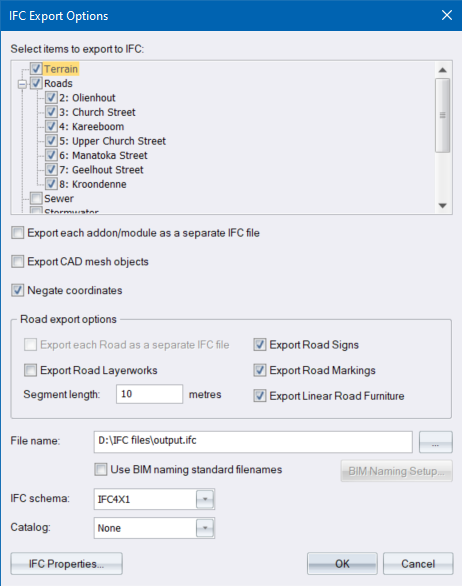
|
Option
|
Description |
|
Select items to export to IFC: |
Select the checkboxes associated with the items you want to export. |
|
Export each addon/module as a separate IFC file |
Select this checkbox to export each module to their own IFC file, or deselect it to export all modules to one IFC file. |
|
Negate coordinates |
Select this option to have the coordinates negated. This will retain the drawing orientation but change the coordinate system so that it still works correctly. |
|
Road export options |
|
|
Export each Road as a separate IFC file |
Select this checkbox to export each road to its own IFC file; or deselect it to export all roads to one IFC file. |
|
Export Road Layerworks |
Select this checkbox to export the road layerworks geometry. |
|
Segment length (m) |
Select a non-zero segment length to split the road up into chunks of the specified length. |
|
Export Road Signs |
Tick this checkbox to export road signs objects for the selected roads. |
|
Export Road Markings |
Tick this checkbox to export road marking objects for the selected roads. |
|
Export Linear Road Furniture |
Tick this checkbox to export linear road furniture objects for the selected roads. |
|
File name |
Enter a path and filename for the exported IFC file or click Browse… to select a folder and filename for the exported IFC file. |
|
Use BIM naming standard filenames |
Use Excel template based ISO-19650-2 BIM file naming. |
|
BIM Naming Setup |
Click this button to show the BIM Naming Setup dialog which will allow you to configure the BIM Naming template and enter the required BIM naming fields. |
|
IFC schema |
Select an IFC schema for the IFC file(s) that will be exported.
|
|
Catalog |
Select an IFC catalog from the dropdown to iinclude the IFC "classification codes" for the objects exported to the IFC file. Select None if you do not want to include the classification codes in the IFC file. |
|
OK button |
Click to start the export. |
|
Cancel button |
Click to cancel the export function. |
 N
N