|
Option
|
Description |
|
Perimeter Lines |
|
|
Pen |
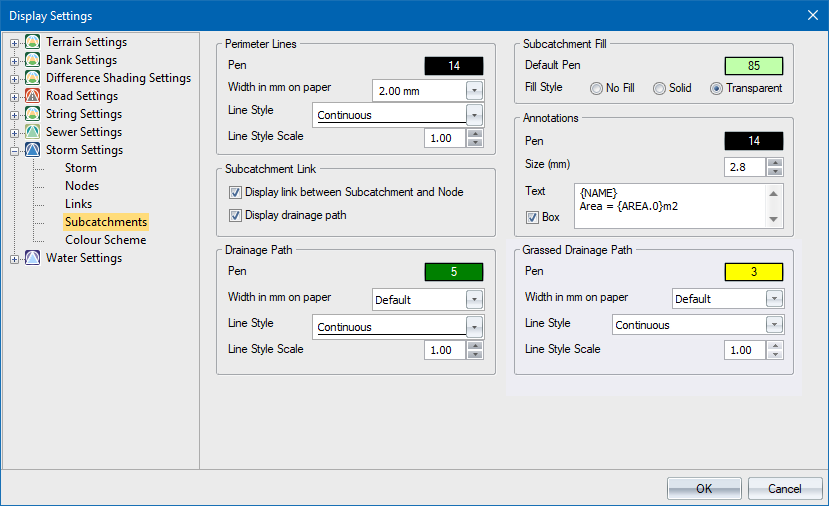
The subcatchment perimeter is displayed as a line in the specified colour. To change the colour, click the button and select a colour from the Colour window. |
|
Width in mm on paper |
Specify the width of the line in mm on paper. Use the arrows to step through a list of available sizes. |
|
Line Style |
Specify the line style. Use the arrows to step through a list of available line styles. |
|
Line Style Scale |
Specify the scale for the subcatchment line style. |
|
Subcatchment Link |
|
|
Display link between subcatchment and node |
Select this checkbox to display a line between the subcatchment and the node that it drains to. |
|
Display drainage path |
Select this checkbox to display the drainage path. |
|
Drainage Path |
|
|
Pen |
Select the colour for the drainage path. To change the colour, click the button and select a colour from the Colour window. |
|
Width in mm on paper |
Specify the width of the line in mm on paper. Use the arrows to step through a list of available sizes |
|
Line Style |
Specify the line style. Use the arrows to step through a list of available line styles. |
|
Line Style Scale |
Specify the scale for the drainage path line style. |
|
Subcatchment Fill |
|
|
Default Pen |
Select the fill colour for the subcatchment. To change the colour, click the button and select a colour from the Colour window. The Colour Scheme setting will override this colour. |
|
Fill Style |
Select the fill style. There are three options:
|
|
Annotations |
|
|
Pen |
Select the colour for the subcatchment annotations. To change the colour, click the button and select a colour from the Colour window. |
|
Size (mm) |
Specify the subcatchment annotation text size in mm. Use the arrows to step through a list of available sizes. |
|
Text |
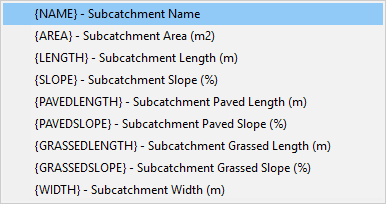
Enter the text to be written as the annotation for each subcatchment. Five variables are available:
Right-click inside the text box to select from a menu. You can also define the number of decimals for numeric items. For example, an item {AREA.1} will display the area size of the subcatchment to one decimal. The default display is three decimals. |
|
Box |
Select this checkbox to have a box filled in the current drawing background colour placed behind the annotation text. This is a useful option if you want to blank out portions of the underlying data in order to highlight the text. |
|
Grassed Drainage Path |
|
|
Pen |
Select the colour for the grassed drainage path. To change the colour, click the button and select a colour from the Colour window. |
|
Width in mm on paper |
Specify the width of the line in mm on paper. Use the arrows to step through a list of available sizes |
|
Line Style |
Specify the line style. Use the arrows to step through a list of available line styles. |
|
Line Style Scale |
Specify the scale for the drainage path line style. |