|
Option
|
Description |
|
All Quantities |
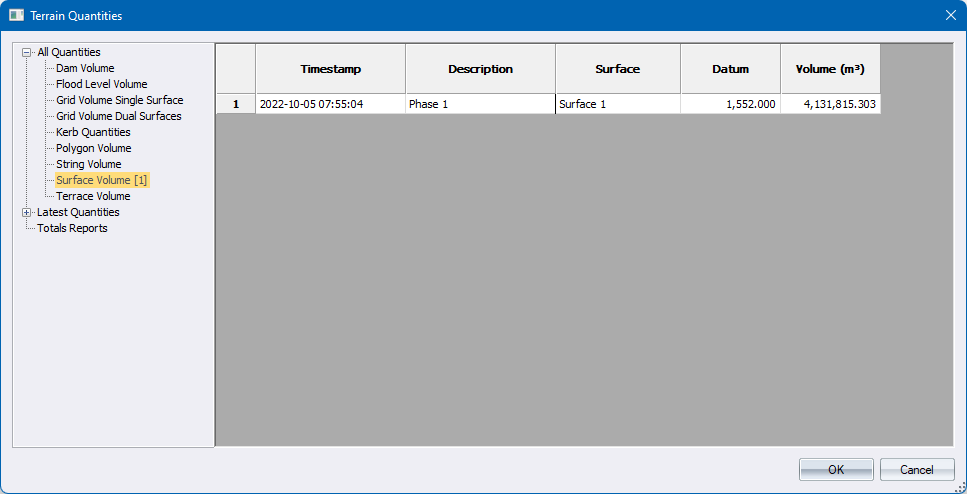
This is a list of all the available volume calculation types. A number in square brackets [n] after a type indicates how many records there are of that type. Records originate by the calculation having been performed outside via the Terrain menu. No number means that calculation type has not been performed.
Right-click menu options are:
|
|
Latest Quantities |
This is a filtered view of the All Quantities but showing only those calculation types that do have records, and only the latest timestamp of any description. In other words, it’s the last result of any described calculation.
Right-click menu options are the same as for All Quantities |
|
Totals Reports |
This is a list of Total reports, which are user-defined selection of records of any one calculation type, with summations of area and volume columns.
Right-click menu options are:
|
|
Spreadsheet |
When an item under All Quantities or Latest Quantities is selected, then the spreadsheet lists all or the latest calculation results of the selected quantity. When an item under Totals Report is selected, then the spreadsheets lists the quantities chosen for the report, and a further highlighted row with bold summations of the columns denoting areas or volumes. |
|
OK |
Press to save any changes and return. Changes are for example deletion of records, editing of descriptions, adding or deleting of a Totals report. |
|
Cancel |
Press to discard changes and return. |