Publish Layout
Save one or more layouts as individual drawings.
|
Icon |
Command |
Shortcut Key |
Toolbar |
|
|
PUBLISH |
|
Misc |

This function allows you to export one or more layouts as individual drawings in .DR4, .DWG or .DXF file format.
The Publish function embeds all sub-drawings and blocks in the drawing files, so they can be archived independently of any exterior data. The resulting file name is a combination of the drawing name and the layout name. For example, if the layout’s name is "Detail" and the drawing file is called "My Drawing.dr4", the published file is called "My Drawing_Detail.dr4".
You also have the option to print one or more layouts or export them to PDF.
Procedure
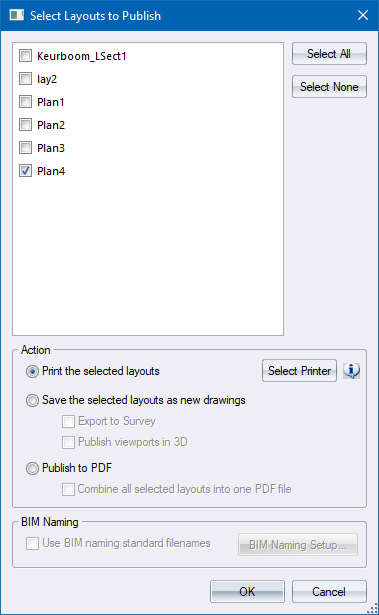
A list of existing layouts displays in the Select Layers to Publish window.
|
Option
|
Description |
|
List of Layouts |
A list of all the layouts in the drawing. If the checkbox is selected, the layout will be published. |
|
Select All |
Click to select all the layouts. |
|
Select None |
Click to deselect all the layouts. |
|
Action Section |
|
|
Print the selected layouts |
Select this option to print the layouts. |
|
Select Printer button |
Click this button to print up the Print Setup window so that you can choose a printer. |
|
Save the selected layouts as new drawings |
Select this option to save each of the selected layouts as a new drawing (Publish). The following two options are available |
|
Export to Survey |
Select this checkbox to publish the layouts in survey coordinates. This option is only available for drawing with survey coordinates. |
|
Publish viewports as 3D |
Select this checkbox to publish all the data with a height value (z coordinate). In effect, this option creates a 3D drawing. |
|
Publish to PDF |
Select this option to publish the layouts to PDF. |
|
Combine all selected layouts into one PDF |
Tick this checkbox to publish all the selected layouts into one PDF with multiple pages.. |
|
Use BIM naming standard filenames |
Select this option to use Excel template based ISO-19650-2 BIM file naming. |
|
BIM Naming Setup button |
Click this button to show the BIM Naming Setup dialog which will allow you to configure the BIM Naming template and enter/change the values you want to appear in the published output for the required BIM naming fields (eg: Level, Zone, Starting Document Number and Revision).
|

Publish to printer
- Select the layouts you want to publish.
- Select the “Print the selected layouts” option, and click OK.
- The selected layouts will be printed to the current printer selected for AllyCAD.
Publish to drawing files (DR4, DWG, DXF):
- Select the layouts you want to publish.
- Select the “Save the selected layouts as new drawings” option, and click OK.
- The Publish Destination dialog will be displayed:
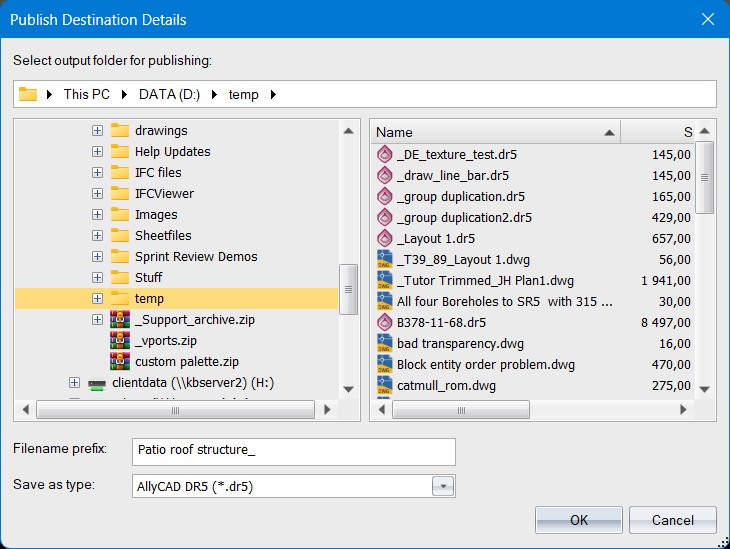
Specify the folder for the published files, a prefix for the published files, and a file type (DR5 or DWG), then click OK. The published layout(s) are saved to the folder specified, and the following displays in the Output Bar
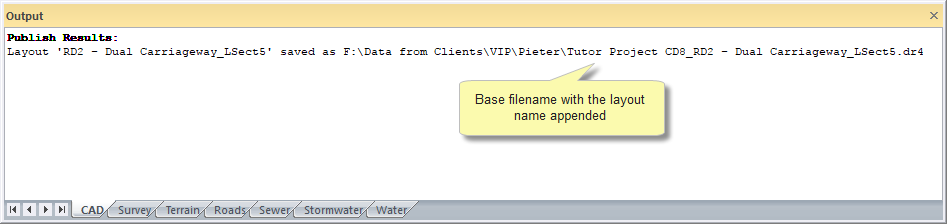
Note: Each layout is saved as a separate drawing. The filename for each saved layout is generated by combining the file name prefix and the layout name.
Publish to PDF:
- Select the layouts you want to publish, then select the “Publish to PDF” option.
- If you want to export all selected layouts into one PDF file, then select the “Combine all selected layouts into one PDF file” option.
- Click OK.
- If you used the “Combine” option, then you will be prompted to specify a folder and filename for the output PDF, otherwise you will be asked to specify a folder and filename prefix for the output PDFs.
- The PDF Export Options dialog will appear
- Modify the PDF export options as needed, and click OK. (These options will be applied to all the exported PDF files)
- “Generating PDF export database…” and then “Exporting PDF…” will be displayed in the prompt bar while the program is busy exporting to PDF.
Note: If you did not specify the “Combine” option, then each layout is saved as a separate PDF file. The filename for each saved layout is generated from the directory and file name you specified in the “File Save” window, plus the layout name.