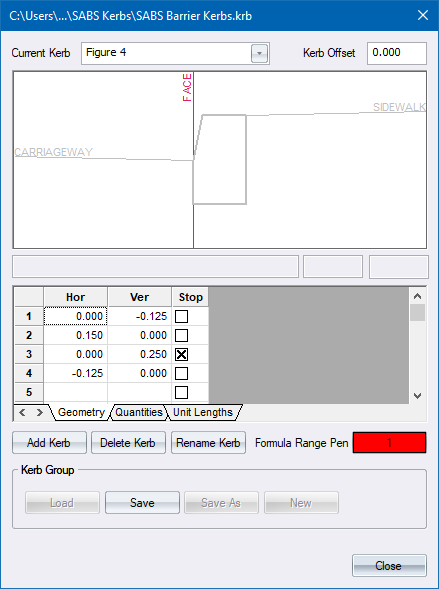
Edit the kerb definition.
|
Option
|
Description |
|
Current Kerb |
Select a kerb from the list of kerbs in the loaded kerb group file (*.krb). |
|
Kerb Offset |
Enter the amount by which the kerb should be offset. This is used to define the position of the kerb face. |
|
Display Area |
Displays the kerb geometry. The pink line indicates the position of the kerb face. You can press [D] to de-magnify, [M] to magnify, and [W] to pan. |
|
Add Kerb |
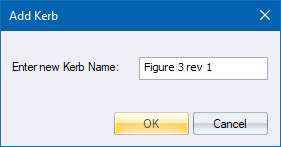
Click to add a new kerb to the kerb group file. The Add Kerb dialog displays.
|
|
Delete kerb |
Click to remove the selected kerb from the kerb group file. |
|
Rename Kerb |
Click to rename the selected kerb. |
|
Formula Range Pen |
Enter the pen to highlight the kerb sides used in a formula in the Quantities tab. |
|
Kerb Group |
|
|
Load |
Click to load a new kerb group file. |
|
Save |
Clickto save changes to the current kerb group file. |
|
Save As |
Click to save the current kerb group file to a new file. |
|
New |
Click to start a blank file. |
|
Close |
Close the Kerb Editor. |
Geometry
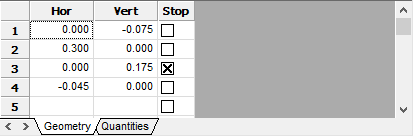
Specifies the cross-sectional geometry of a kerb by using two dimensional vectors.
|
Column
|
Description |
|
Hor column |
Specifies a horizontal movement, starting from the edge of the carriageway (PLC 100 or 101). |
|
Vert column |
Specifies a vertical movement, starting from the edge of the carriageway (PLC 100 or 101). |
|
Stop column |
Indicate where the compulsory portion of the template must start. When generating edge levels, a "cut-out" is created from row 1 up to this row. |
Quantities
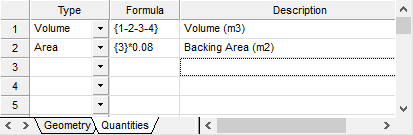
Specifies quantities to be calculated when running Kerb Quantities. The program automatically multiplies the specified quantities by the length of kerb calculated at the kerb face.
|
Column
|
Description |
|
Type |
Enter the type of quantity to be calculated. If Type is set to Volume, the defined region represents an area. If Type is set to Area, the region represents a linear distance. If Type is Linear, it simply applies the formula to the linear distance. |
|
Formula |
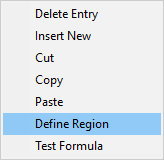
Enter the range - closed polygon for volumes and open polygon for areas. You can also add, subtract, multiply or divide a constant value to the range. Right-click and select the Define Region option to indicate sides on the kerb profile.
|
|
Description |
Enter a description that is printed when running Kerb volumes. |
Unit Lengths
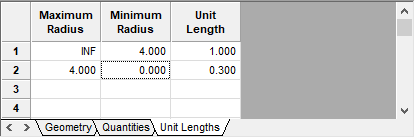
Specifies the lengths of the actual pre-cast kerb units. The resultant kerb units will be reflected in Export to IFC and in Render View. Unit lengths are defined in meters for a specified kerb radius range
|
Column
|
Description |
| Maximum Radius | Enter the maximum kerb radius for the specified unit length |
| Minimum Radius |
Enter the minimum kerb radius for the specified unit length
|
| Unit length | Enter the kerb unit length in meters. A value of ZERO will result in a continuous kerb. |
See Also Kerb Editor